

Have you bought the new iPhone and want to transfer the eSIM from your old phone to a new one, while maintaining its functionality? Don’t worry, we’re here to help you throughout the process. Whether you are transferring the eSIM from your Android or iPhone to the new iPhone, this process will be easier than you think.
However, you have to learn about some tactics for seamless transmission. Before transferring the eSIM, make sure both your phone devices are placed side by side. Ensure that the iOS versions on your old and new phones are updated. Additionally, ensure that your old phone’s Bluetooth is turned on.
Follow each instruction to successfully transfer your eSIM.
Considerations for Transferring eSIM to a New iPhone
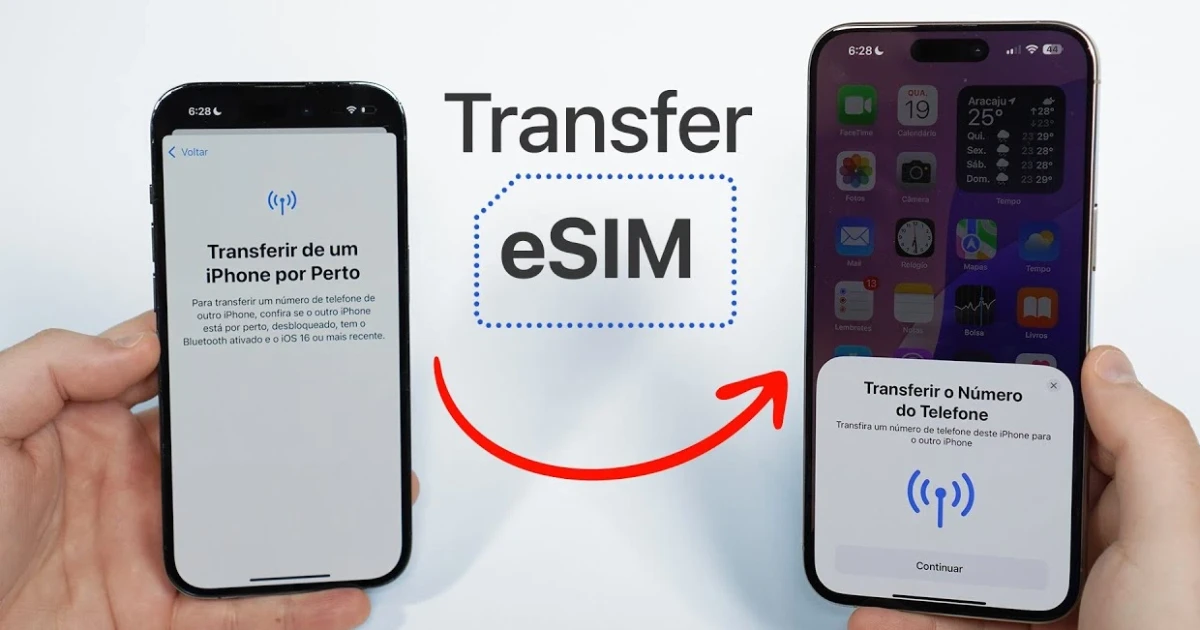
Before you start the eSIM transmission process, follow these guidelines for a seamless process:
Software Update: Ensure the software on both old and new iPhones is up to date. Both iPhone devices should have the latest iOS version installed, and should be iPhone XS MAX, iPhone XR, iPhone XS, or a newer model.
eSIM Carrier Connectivity: Your new iPhone carrier should be compatible with eSIM activation.
Strong Network Connection: Make sure to maintain a strong network connection during the eSIM transfer. However, the iPhone 14 or the latest model does not require strong connectivity during this process.
Device Unlocking: Ensure that both of your mobile devices are unlocked to support your mobile carrier.
Phone Backup: Back up your old and new iPhones to prevent data loss after eSIM activation.
Transferring eSIM From an Old iPhone to a New One
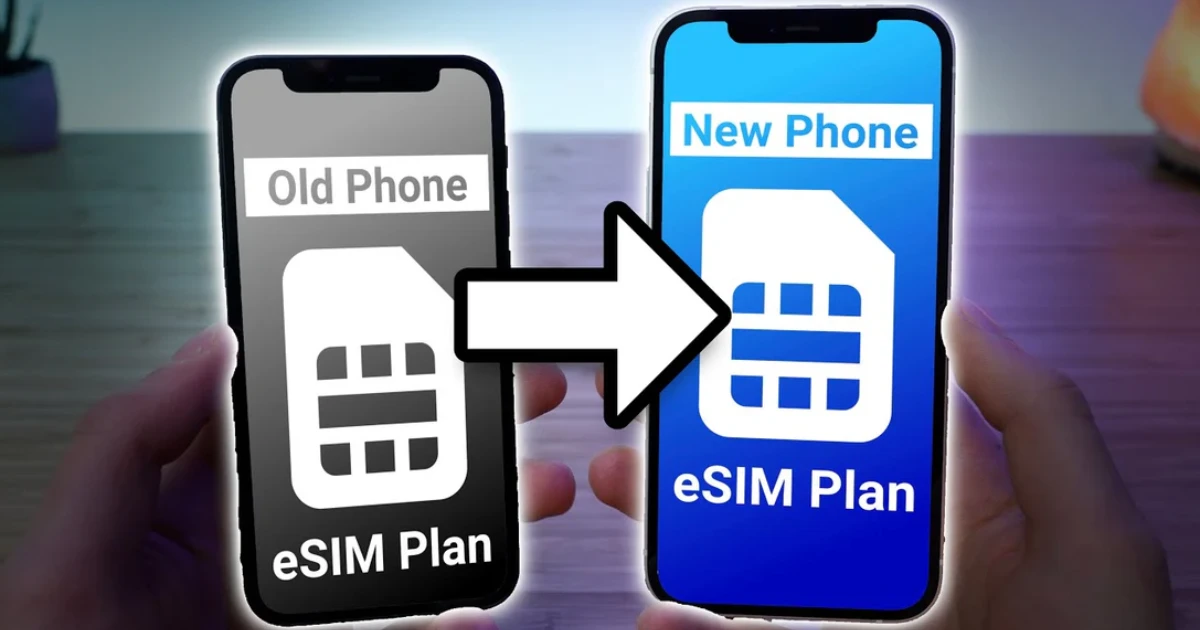
Here is the step-by-step guide to transferring eSIM from an old iPhone to a new one. Follow each step carefully.
-
Move Your eSIM Automatically During Setup
Most iPhones have the eSIM Quick Transfer feature, which enables you to easily move your eSIM from your old iPhone to your new one during setup. To use this feature, start up your new iPhone. When you see the ‘Set up Cellular’ or ‘Set up Mobile Device’ option on the screen, click on ‘Transfer From nearby iPhone’. You have to choose the ‘One Line’ option if you have two eSIMs in your old iPhone device.
Then, select the eSIM that you want to transfer to the new iPhone, and then click on ‘Continue’. Your eSIM will automatically transfer to the new phone. However, remember that some iPhone devices do not support automatic eSIM activation. In this case, search for the methods to move the eSIM from the old iPhone to the new one after the iPhone setup.
-
Move Your eSIM Manually After Setup
If your new iPhone does not have the Quick Transfer feature, try to transfer your eSIM manually after setup. For manual transfer, you have to install the eSIM in your iPhone. This method will be useful only if your iPhone has the latest version. After installing the app, go to the ‘settings’ of your new iPhone. Select the ‘Cellular’ or ‘Mobile Data’ option.
Then, click on ‘Add Cellular Plan’ or ‘Add mobile data plan’. The ‘transfer from another iPhone’ option will be shown on the screen. Click on the option. Now, you will receive the eSIM transferring instructions. Generally, after clicking on the ‘Transfer’ option, your eSIM will be activated. In some cases, you will get an activation verification code. Add that code, and after scanning your eSIM QR code, your new eSIM will start functioning.
-
Remove an eSIM from Your Old iPhone and Add It to a New One
If you are facing issues in transferring the eSIM from your old iPhone device to a new one, you can also use this technique. To do this, open the ‘Settings’ of your old iPhone device. Search for the ‘Cellular’ or ‘Mobile Data’ option and choose the eSIM that you want to move to your new iPhone. Click on the ‘Remove Cellular Plan’ or ‘Remove mobile data plan’, or the ‘Delete’ option.
Before adding the eSIM, make sure all the settings on your new iPhone are complete. Once all the setting is done, open your new phone settings. Click on the ‘Cellular’ or ‘Mobile Data’ or tap on the ‘Add Cellular Plan’ or ‘Add Mobile Data plan’. Adhere to all the prompts that appear on the screen. Then, activate your eSIM by scanning the QR code or signing in to the carrier’s app from the Google Play Store.
Transferring eSIM From Android to New iPhone
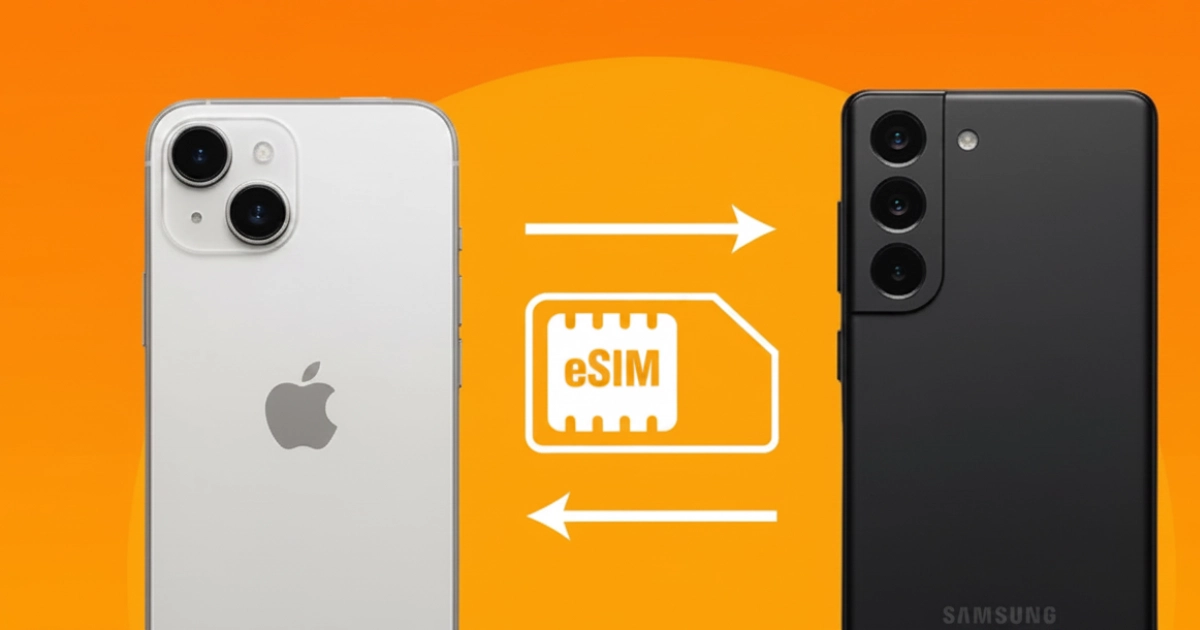
If you want to transfer the eSIM from an Android phone to a new iPhone, follow these guidelines. To transfer the eSIM, you have to activate the eSIM carrier. The iPhone directly accesses the eSIM carrier with IMEI or EID Number. Usually, your iPhone automatically shows the eSIM data. If it does not display on your new iPhone screen, you have to go to settings. Then, click on the ‘Cellular’ or ‘Mobile data’.
Click on the ‘cellular’ or ‘mobile data plan’. When you have completed this process, your new iPhone eSIM will be activated. Now, scan the QR code provided by the eSIM carrier and activate the eSIM on your iPhone.
In case of some carriers, such as T-Mobile or AT&T, you have to download the app. After logging in, your eSIM will be digitally activated. You can also manually transfer the eSIM through the activation code. Add your information in the ‘Use QR Code’ section. Then, tap on the ‘Enter details manually.’
Conclusion
Transferring the eSIM from your old Android or iPhone to a new iPhone is not difficult. However, you may run into trouble if you don’t follow the instructions carefully. We have provided the best everlist.ae ways to move your eSIM, including automatic transfer, manual transfer, and deleting the eSIM from your old phone and adding it to your new iPhone. Before transferring the eSIM, make sure to update the iOS software version on your old phone. During eSIM setup, make sure both the old and new phones have a strong network connection. Your old phone’s Bluetooth should also be turned on.