192.168.70.1 Login: Du Router Admin Guide for UAE
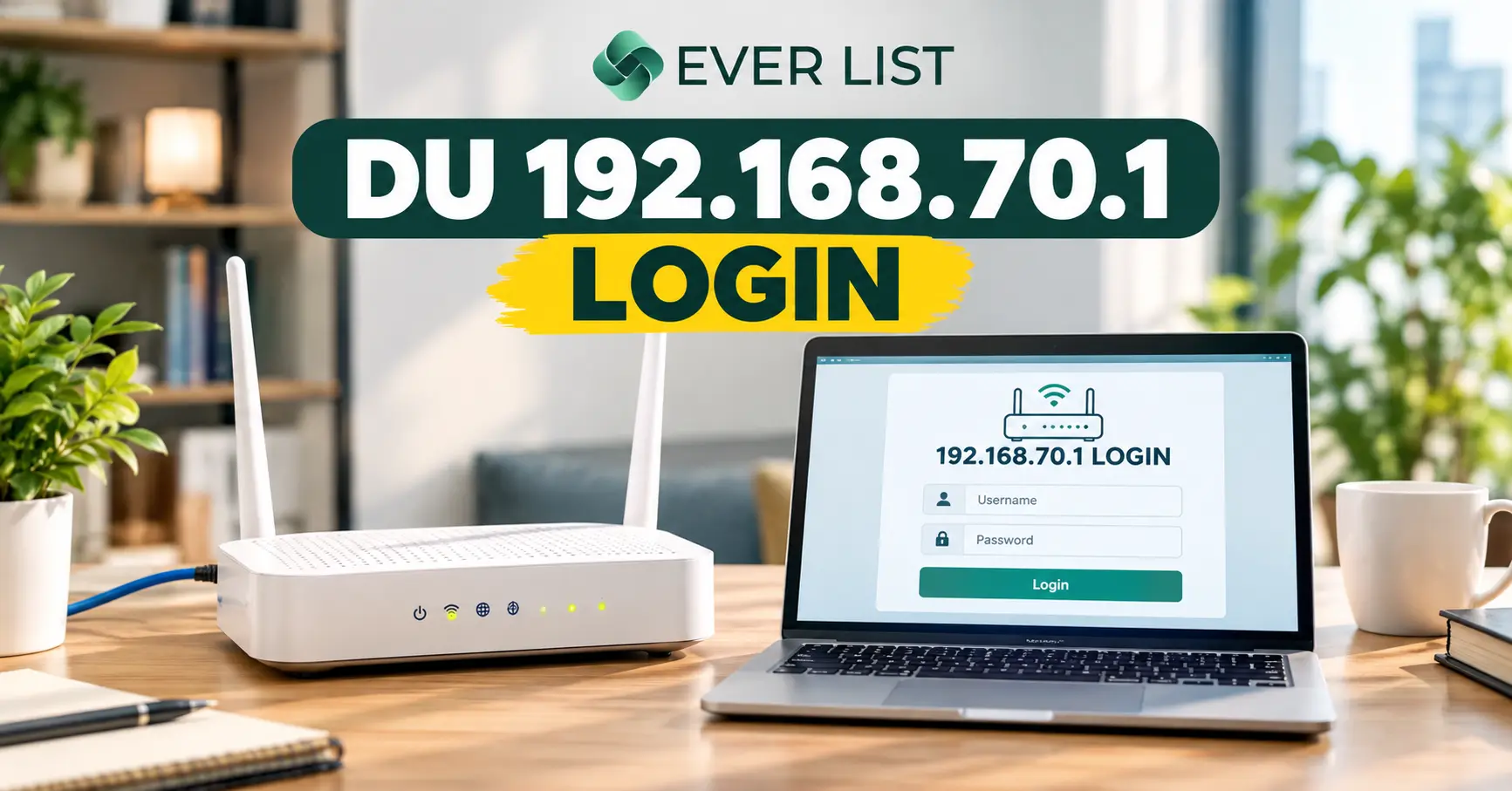
To log in, connect to your DU WiFi and open a browser. Type http://192.168.70.1 in the address bar and press Enter. Then enter the username and password printed on the sticker under your router.
That is all most people need. But if the page does not open, the password fails, or your Du data stops working, keep reading. This guide covers each problem in plain steps.
In real home setups, the same few mistakes cause almost every failed login. I will show you each one and how to fix it fast.
What Is 192.168.70.1?
192.168.70.1 is a private IP address. Many Du Home Wireless routers in the UAE use it as their admin page address. Think of it as the front door to your router settings.
It is not a website. You cannot open it from Google or from another house. It only works when your phone or laptop connects to that same router.
Private IP ranges like 192.168.x.x are set aside for home and office networks. The rules for this come from an internet standard called RFC 1918. That is why the same address works in every home but never on the open internet.
What can you do in the router admin panel?
- Change your WiFi name (SSID) and WiFi password
- Change the admin login password
- See which phones and laptops are connected
- Block unknown devices
- Check signal strength and data usage on Home Wireless routers
- Restart the router or run a factory reset
- Update router firmware when an update is offered
Which DU routers use 192.168.70.1?
The address depends on your router model. du has given customers different routers over the years. Always check the sticker first, because it shows the correct address for your device.
| du router type | Common login address | Where to confirm |
| du Home Wireless 5G (ZLT models such as X21) | 192.168.70.1 | Sticker under the router |
| Nokia FastMile 5G gateway | 192.168.1.1 | Sticker or du app |
| D-Link 4G routers (some older Home Wireless units) | 192.168.0.1 | Sticker on the back |
| Huawei 4G and 5G routers | 192.168.8.1 | Sticker on the base |
If your router is not in this table, do not guess. Use the “find your gateway” steps in the troubleshooting section below.
How to Log In to 192.168.70.1 Step by Step
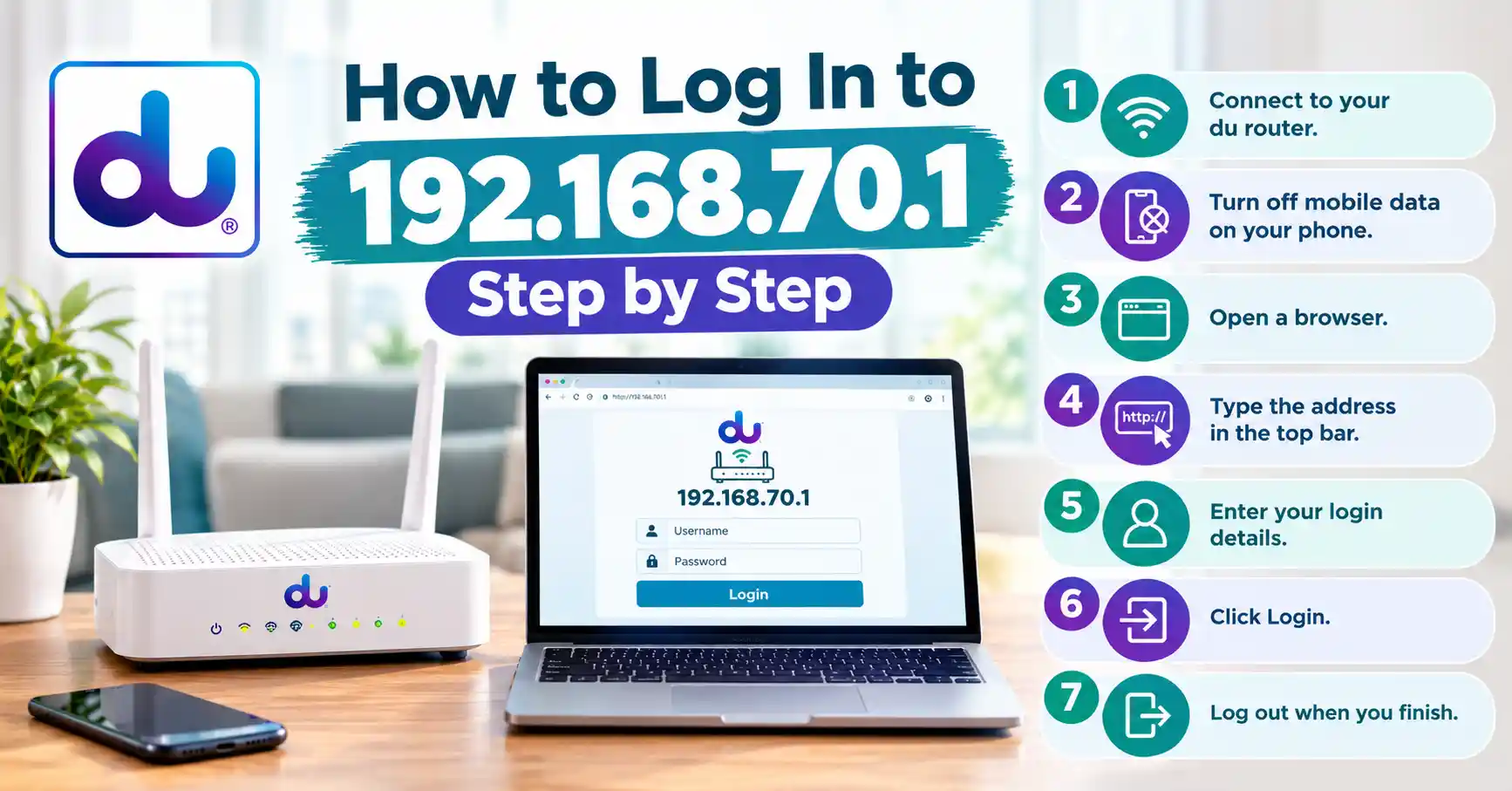
These steps work on a laptop, iPhone, or Android phone. The whole process takes about one minute.
- Connect to your du router. Join its WiFi or plug in a LAN cable. A cable is more stable if WiFi keeps dropping.
- Turn off mobile data on your phone. Otherwise, your phone may try the address over the du mobile network and fail.
- Open a browser. Chrome, Safari, Edge, or Firefox all work.
- Type the address in the top bar. Enter http://192.168.70.1 and press Enter. Do not type it in the Google search box.
- Enter your login details. Use the username and password from the router sticker.
- Click Login. The dashboard opens, and you can change your settings.
- Log out when you finish. This stops anyone else on your network from using your open session.
Why the address bar matters: The search box sends your text to Google. Google then shows random websites instead of your router. The address bar talks to your router directly.
Default username and password for 192.168.70.1
There is no single default login for every du router. Each model and batch can differ. The sticker under your router is always the most reliable source.
| Router | Common username | Password |
| du Home Wireless 5G (ZLT X21) | user | Printed on the sticker |
| Other ZLT units on 192.168.70.1 | admin or user | Printed on the sticker |
| D-Link 4G (192.168.0.1) | admin | admin, or printed on the sticker |
| Nokia FastMile (192.168.1.1) | admin | Printed on the sticker |
A tip from real setups: People often mix up the WiFi password and the admin password. Both may sit on the same sticker. The WiFi password joins the network. The admin password opens the settings page.
If you or a technician changed the admin password earlier, the sticker will no longer work. In that case, only a factory reset brings back the sticker password.
How to log in to 192.168.70.1 from a mobile phone
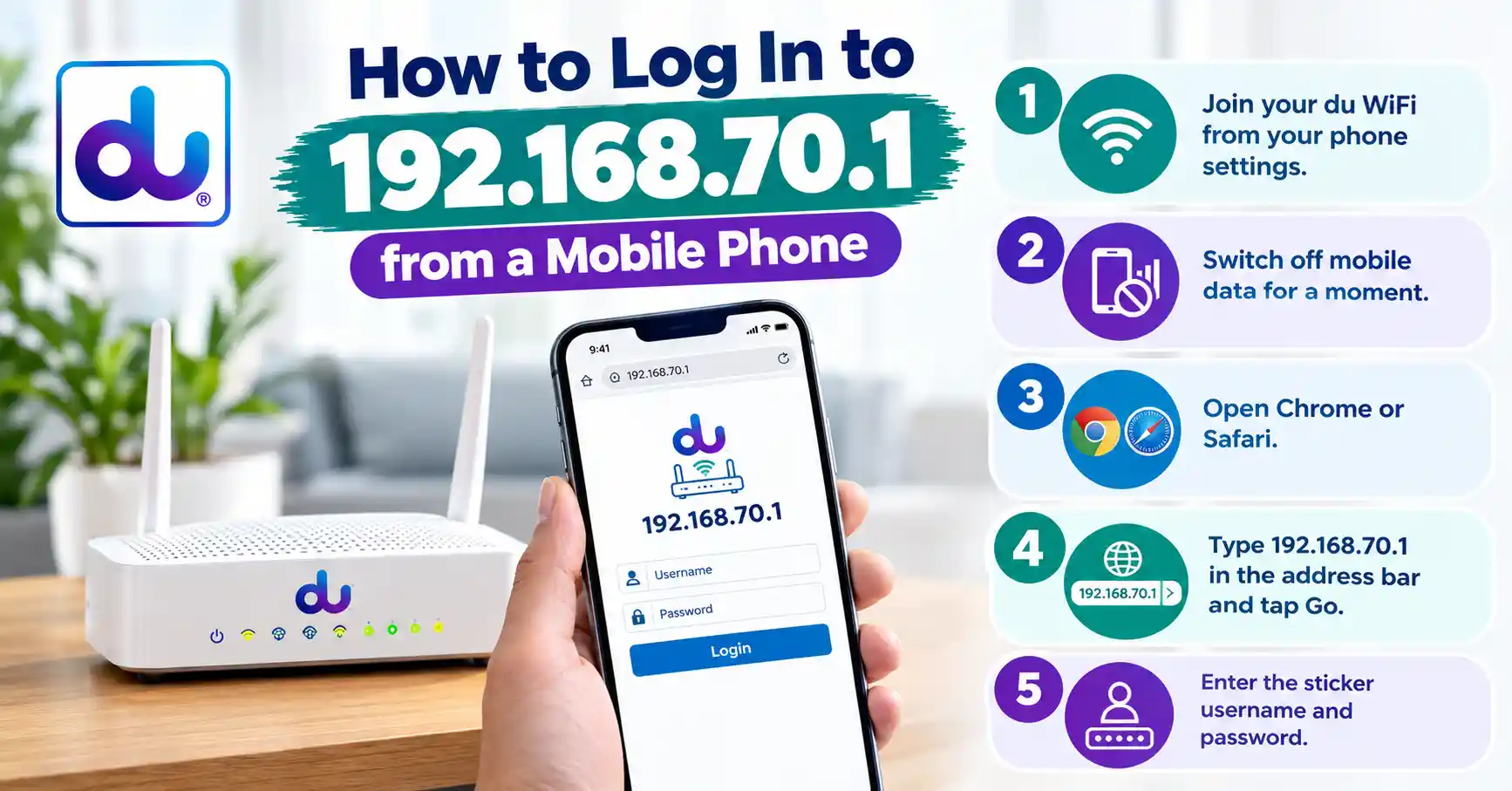
- Join your du WiFi from your phone settings.
- Switch off mobile data for a moment.
- Open Chrome or Safari.
- Type 192.168.70.1 in the address bar and tap Go.
- Enter the sticker username and password.
The mobile layout can look small. Turn your phone sideways or use the browser’s desktop site option if menus are hard to tap.
Why 192.168.l.70.1 and Other Versions Do Not Work
An IP address uses only numbers and dots. One wrong letter or missing colon breaks it. Your browser then treats the text as a search instead of an address.
The most common mistake is 192.168.l.70.1. Here, a lowercase “l” replaces the number “1” or slips in as an extra part. The two look almost the same on many phone keyboards.
Wrong vs. correct address table
| What people type | What goes wrong | Type this instead |
| 192.168.l.70.1 | Letter l added, so it is not a valid IP | 192.168.70.1 |
| https //192.168.l.70.1 | Missing colon and a letter l | http://192.168.70.1 |
| https //192.168.l.70.1 du | Extra word “du” turns it into a search | http://192.168.70.1 |
| https 192.168 l 70.1 | Spaces and a letter l | 192.168.70.1 |
| 192 l.168.70.1 | Letter l in the wrong place | 192.168.70.1 |
| https //192.168.70.1 | Missing colon after https | http://192.168.70.1 |
| http//192.168.70.1 | Missing colon after http | http://192.168.70.1 |
| www.192.168.70.1 | “www” is for websites, not IP addresses | 192.168.70.1 |
| 192.168.70 | Address is incomplete, last part missing | 192.168.70.1 |
Should I use http or https for 192.168.70.1?
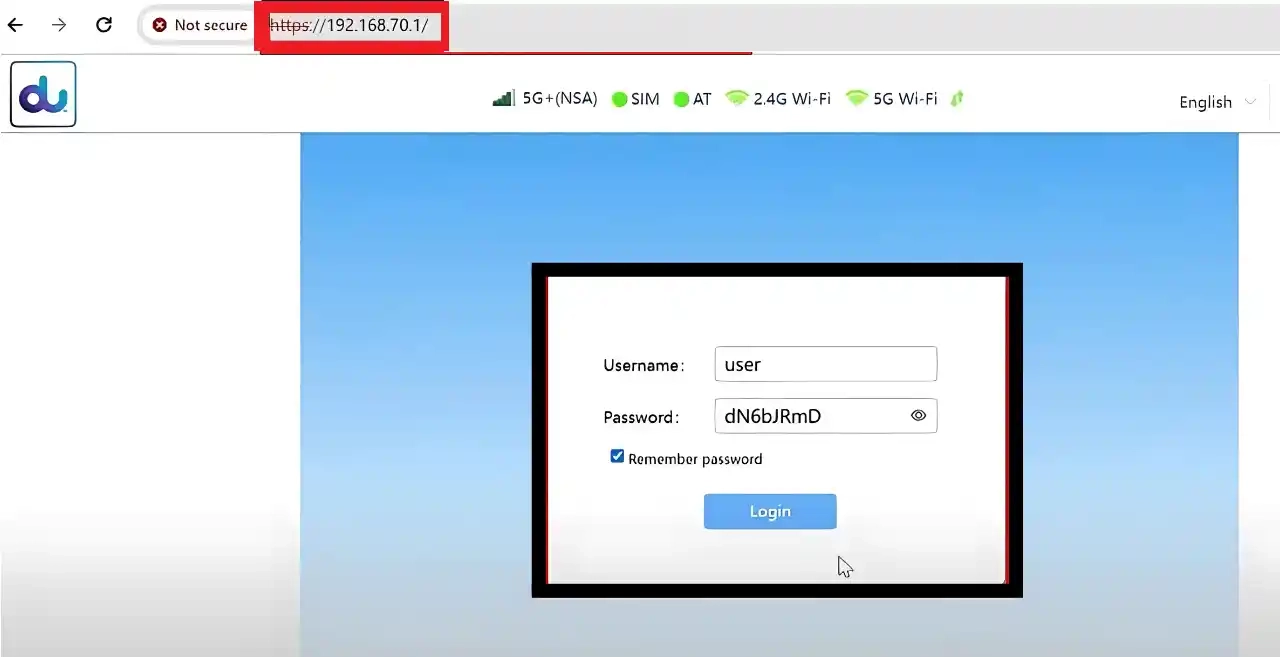
Start with http://192.168.70.1. Most home routers load fine this way.
Some newer routers move you to https://192.168.70.1 on their own. Your browser may then show a “Not secure” or “Your connection is not private” warning. This is normal on a home router. The router uses its own certificate, which browsers do not recognise.
On your own router, at home, you can click Advanced and then Proceed. Never do this on public WiFi or on a network you do not trust.
Quick typing tips
- Type the address yourself. Do not copy it from random websites, as they may hide extra characters.
- On a phone, check that autocorrect did not change any number.
- Clear the address bar fully before typing, so old text does not stay behind.
How to Change Your DU WiFi Name and Password via 192.168.70.1
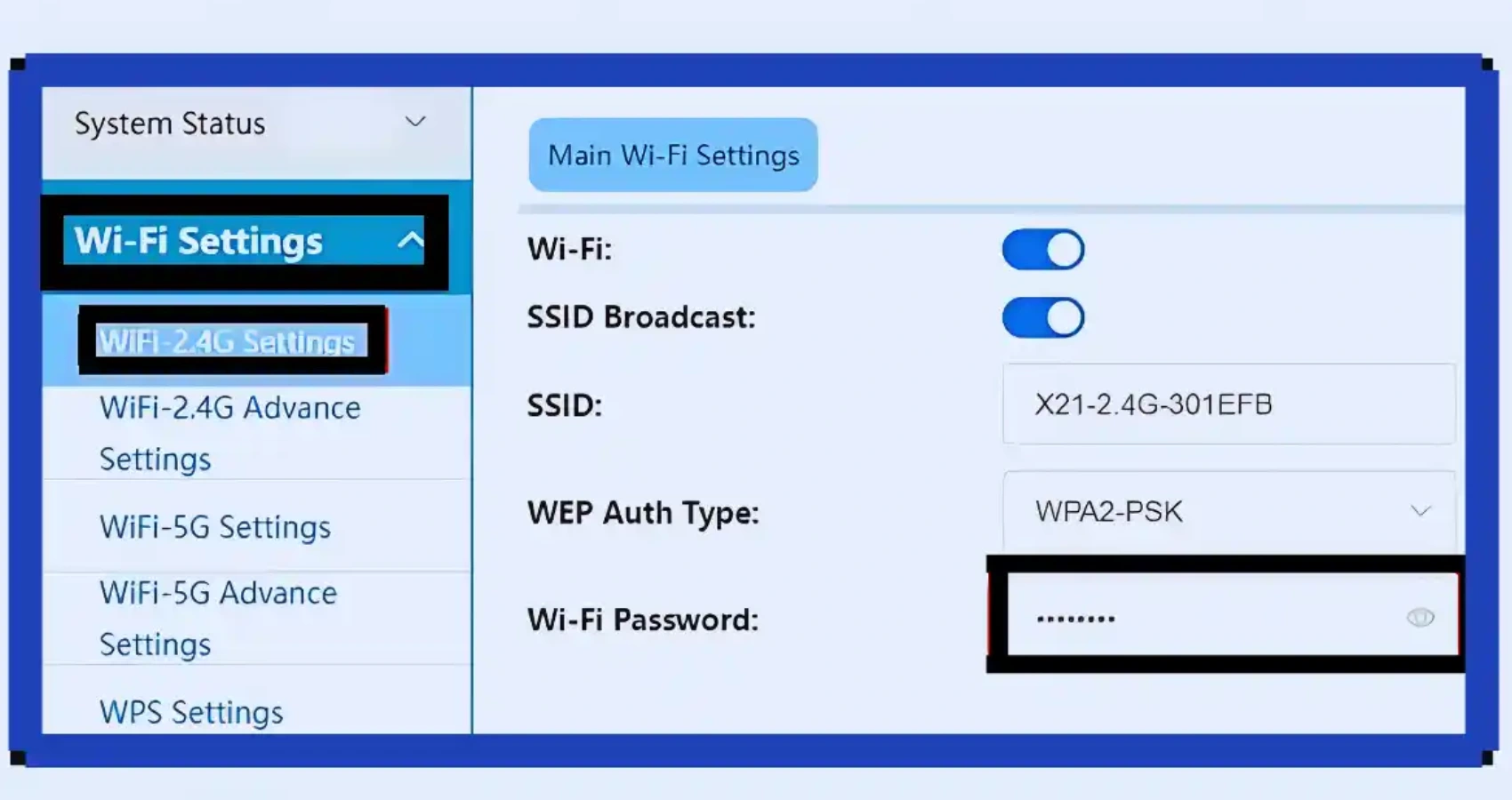
Changing the WiFi password is the main reason people visit 192.168.70.1. Menu names differ a little between models, but the path is similar.
- Log in at http://192.168.70.1.
- Open WiFi Settings (on the ZLT X21 it shows as WiFi Settings, then WiFi 2.4G Settings).
- Type a new network name in the SSID box.
- Type a new password in the WiFi Password box.
- Click Save or Apply.
- Repeat the same steps under WiFi 5G Settings for the second band.
- Reconnect every device with the new password.
What to expect: Your connection drops right after you save. This is normal. The router restarts its WiFi with the new details.
2.4 GHz vs. 5 GHz: Which band should you use?
| Band | Best for | Weak point |
| 2.4GHz | Far rooms, smart plugs, older devices | Slower and more crowded in apartments |
| 5GHz | Streaming, gaming, video calls near the router | Shorter range through walls |
In UAE apartment towers, many neighbors share the 2.4 GHz band. Moving your TV and laptop to 5GHz often gives a smoother picture. Keep smart home gadgets on 2.4GHz, as many cannot see 5GHz at all.
You can give both bands the same name or different names. Different names help you choose the band yourself.
How to make a strong WiFi password
- Use at least 12 characters.
- Mix words, numbers, and symbols, like a short phrase only you know.
- Avoid your flat number, phone number, or name.
- Pick WPA2 or WPA3 security if the menu offers it. Avoid WEP, which is old and easy to break.
Change the router admin password too
Many users change the WiFi password but forget the admin password. Anyone who joins your WiFi could then open your settings with the sticker password.
Look for System, Management, or Account in the menu. Set a new admin password and store it somewhere safe. Write it on paper and keep it near your router documents.
See and block unknown devices
Most du routers show a list called Connected Devices or Device List. Check it once a month.
If you see a device you do not recognize, change your WiFi password. This removes every device at once. Then reconnect only your own.
192.168.70.1 Not Working? Fixes That Actually Help
Work through these fixes in order. The early ones solve most problems and take seconds.
| Problem | Likely cause | Fix |
| Page will not load | Not connected to the du router | Join the du WiFi and turn off mobile data |
| Google results appear | Typed in the search box | Type the address in the top address bar |
| “Site can’t be reached” | Wrong IP for your model | Find your real gateway (steps below) |
| Login page loads, password fails | Wrong password or WiFi password used | Use the admin password from the sticker |
| Page loads very slowly | Router busy or overheated | Restart the router and wait 3 minutes |
| Privacy warning on https | Router uses its own certificate | Click Advanced, then Proceed, on your home network only |
| Works on laptop, not phone | Phone uses mobile data or private DNS | Switch off mobile data and private DNS for a moment |
How to find your real router IP (default gateway)
If 192.168.70.1 does not open, your router may use another address. Your device can tell you the right one.
- Windows: Open Command Prompt. Type ipconfig and press Enter. Look for “Default Gateway”.
- Mac: Open System Settings, then Network, then your WiFi, then Details. Look for “Router”.
- iPhone: Go to Settings, then WiFi. Tap the (i) next to your network. Look for “Router”.
- Android: Go to Settings, then WiFi. Tap your network. Look for “Gateway” or “Router”. Some phones hide it under Advanced.
Type the number you find into the browser address bar. That is your true login address.
Other checks worth trying
- Restart the router. Unplug it, wait 30 seconds, then plug it back in.
- Try another browser or a private window to skip old cached pages.
- Turn off any VPN. A VPN can send your traffic away from your home router.
- Disable ad blockers or security apps for a moment. Some block local pages.
Du Data Not Work? A Simple Checklist
“du data not working” often has nothing to do with the router login page. On Home Wireless routers, the internet comes through a SIM card inside the router. So the cause can be the SIM, the plan, the signal, or the settings.
Step 1: Check your plan and balance
An expired plan or used-up data is the most common cause. Open the du app or do a quick du balance check to see your remaining data and expiry date.
If your data has run out, a short top-up can bridge the gap. Options like du unlimited data for 1 day suit a single busy day. For steady home use,du unlimited data for 1 month avoids daily renewals.
Step 2: Check the signal on the dashboard
Log in at 192.168.70.1 and open the status or network page. Look at the signal bars or values.
A weak signal often comes from the router’s location. Move it near a window and away from metal cupboards and thick walls. Raise it off the floor if you can. Then restart it and check again.
Step 3: Check the SIM card
Power off the router first. Remove the SIM, check it sits flat and is clean, then put it back. A loose SIM can show “No SIM” or “No service”.
Step 4: Check the APN setting
The APN tells the router how to reach the du data network. It is usually set on its own. If someone changed it, data stops.
For du, the standard APN name is du. You can confirm this on the Samsung UAE APN settings page. On the router, look for Network, Mobile Network or APN in the menu. Only change it if you are sure it is wrong.
Step 5: Check for an outage
If every check looks fine, the problem may be on du’s side. Check the du app or du’s official social media for service updates in your area.
When to call DU support
Call du customer care if data still fails after a restart and the checks above. Have your account number and router model ready. du support can see your line status, which you cannot see from the router page. Check the latest support numbers on du.ae.
How to Factory Reset a du Router
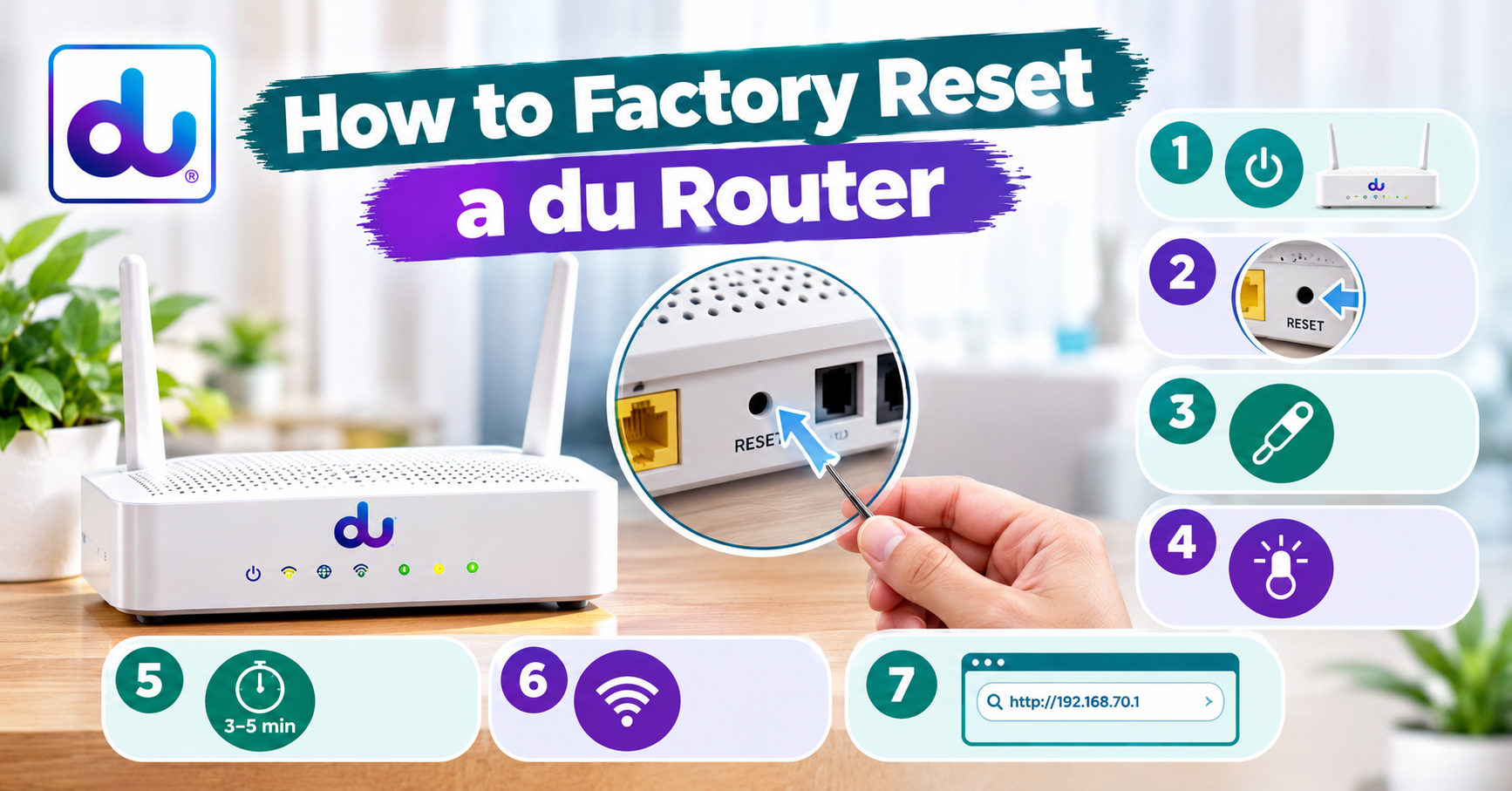
A factory reset brings back the sticker username and password. Use it when you forget the admin password or settings get messed up.
Before you reset, note these down
A reset wipes every custom setting. Take a photo of these pages first if you can still log in:
- Your WiFi name and password
- Any APN changes made by a technician
- Port forwarding or parental control rules
- Blocked device lists
Reset steps
- Keep the router powered on.
- Find the small Reset hole, usually on the back or base.
- Press and hold it with a pin for about 10 seconds. The exact time differs by model, so check the manual.
- Release when the lights blink or go off.
- Wait 3 to 5 minutes for a full restart.
- Join the WiFi using the name and password on the sticker.
- Log in at http://192.168.70.1 with the sticker login and set things up again.
An important limitation: Some du routers lock certain settings, like the APN, for du’s network. A reset will not unlock them. If a menu stays greyed out, du has likely locked it on purpose.
Restart vs reset: which one do you need?
| Action | What it does | When to use it |
| Restart | Turns the router off and on. Keeps all settings. | Slow speed, dropped WiFi, small glitches |
| Factory reset | Erases all settings back to sticker defaults | Forgotten admin password, broken settings |
Always try a restart first. It fixes most everyday problems without losing anything.
Keep Your Router Updated and Safe
Router makers release firmware updates to fix bugs and security gaps. On du routers, updates often arrive on their own. Some models also show an Update or Firmware option in the System menu.
- Never unplug the router during an update. This can damage it.
- Only use updates offered inside the router menu or by du. Do not download router files from unknown websites.
- Turn off WPS if you do not use it. It is a quick connect button that attackers can misuse.
- Never share your admin password in WhatsApp groups or with people you do not trust.
Making the Most of Your du Connection
Once your router works well, your plan matters just as much. Many UAE families also use their du line to call relatives abroad. If that is you, compare a du international call offer with WiFi calling apps to see which costs less. Keep an eye on your usage with a regular du balance check so your service never stops by surprise.
Final Words
The 192.168.70.1 login is simple once you avoid the common traps. Connect to your du WiFi, type http://192.168.70.1 in the address bar, and use the sticker login. Most failures come from a typo like 192.168.l.70.1, mobile data being on, or using the WiFi password instead of the admin password.
Once inside, change both your WiFi and admin passwords and check connected devices now and then. If your du data stops working, check your plan, signal, SIM, and APN before calling support. If a menu is locked or a problem continues, du support can see things the router page cannot.
People Also Ask: 192.168.70.1 Login FAQs
What is the correct DU router login address?
For du Home Wireless 5G routers, it is usually http://192.168.70.1. Other du routers may use 192.168.1.1, 192.168.0.1 or 192.168.8.1. The sticker on your router shows the right one.
Why is 192.168.l.70.1 not opening?
It contains the letter “l” instead of only numbers. Browsers cannot read it as an address. Type 192.168.70.1 using numbers and dots only.
What is the default password for 192.168.70.1?
There is no single default. Most du routers print the admin username and password on a sticker underneath. The du Home Wireless 5G often uses the username “user.”
Can I open 192.168.70.1 using mobile data?
No. It is a private address that works only inside your home network. Connect to your du WiFi first, then open it.
Can I change my du WiFi password from my phone?
Yes. Join your du WiFi, open a browser, and go to 192.168.70.1. Log in and open WiFi Settings to change the password.
Is https://192.168.70.1 safe if my browser shows a warning?
On your own home router, yes. The warning appears because the router uses its own certificate. Only proceed on networks you own and trust.
Why does www.192.168.70.1 not work?
“www” only works with website names. An IP address never needs it. Type 192.168.70.1 on its own.
What should I do if I forgot my router admin password?
Try the sticker password first. If someone changed it, do a factory reset. This restores the sticker login but erases your custom settings.
Why is my DU data not working even with full signal?
Your plan may have expired or your data may be used up. Check your balance in the du app. Then restart the router and confirm the APN is set to “du”.
How often should I change my WiFi password?
Change it when you see unknown devices or after guests or workers leave. Many people also change it every few months as a habit.